
This is an old revision of the document!
You can follow a video (Blender 2.80 and later) of this guide. It may be helpful to refer to both the video and this text.
Preparation
Follow these steps to prepare for previewing liveries
- If you are using blender 2.79 or earlier, switch from
Blender RendertoCycles Renderin the dropdown to the right of the topmost menu bar. - On the menu bar in the top-right of the 3D view (below the 3D view in Blender 2.79 or earlier, or a file created in Blender 2.79 or earlier), click the ball icon next to
Object Modeand selectMaterial
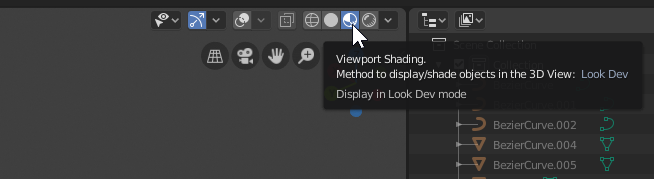
- Right-click the default cube to select it
- Select the Material tab in the Properties pane
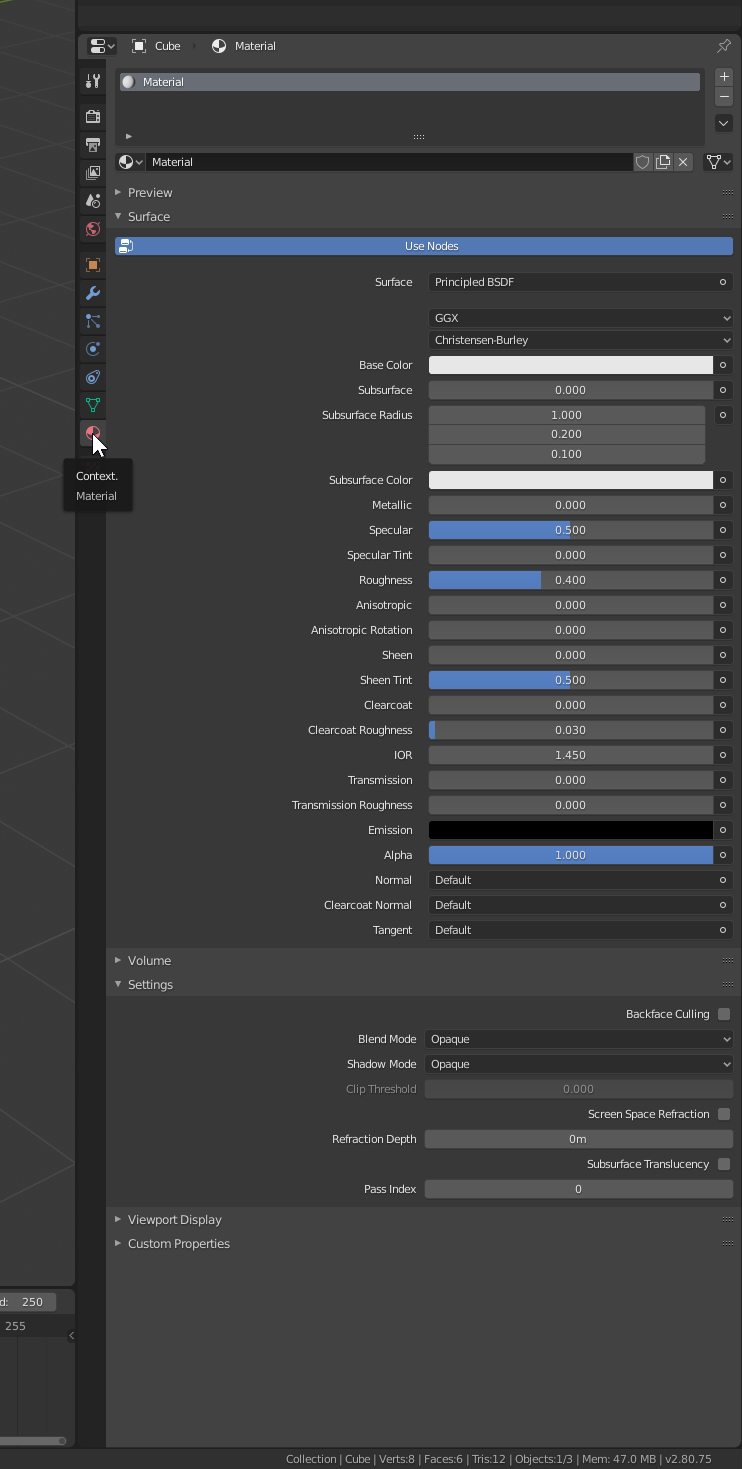
- Click
+ New - Blender 2.80: Click the icon in the upper-left of the 3D view, and select
Material Editor - Blender 2.79: Click the icon in the lower-right of the 3D view, and select
Node Editor - You should now see a
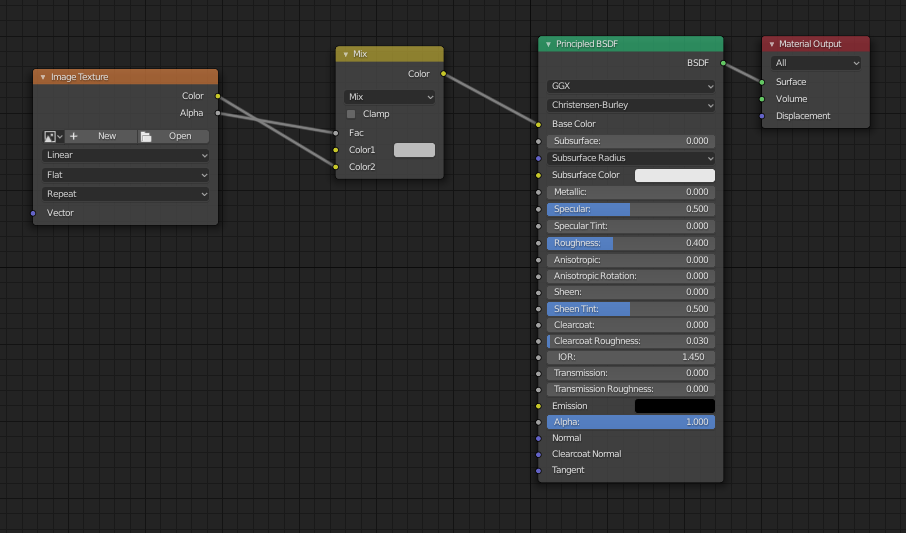
Principled BSDForDiffuse BSDFwith itsBSDFoutput connected to aMaterial Outputby itsSurfaceinput. If so, skip the next three steps.- If not, press delete to clear the Node Editor (press
Athen delete if this does not clear the Node Editor) - Click
Add > Output > Material Outputand click anywhere in the Node Editor to place the node - Click
Add > Shader > Diffuse BSDFand click anywhere in the Node Editor to the left of the Material Output node to place the node - Click and drag from the
BSDFoutput of theDiffuse BSDFnode to theSurfaceinput of theMaterial OutputNode
- Click
Add > Color > MixRGBand click in an empty space to the left of the BSDF node to place it - Click
Add > Texture > Image Textureand click in an empty space to the left of theMixnode to place it - Click and drag from the
Coloroutput of theImage Textureto theColor 2input of theMix - Click and drag from the
Alphaoutput of theImage Textureto theFacinput of theMixnode - Click the Shield icon (or F) next to the material name near the top of the material tab in the properties pane.
- On the left of the menu above (below in 2.79 and earlier) the
Node Editor, click the icon and select3D View - Press
Ato select all (press until orange outlines are seen) - Press
Deleteand click on the confirmation popup - You may want to
File » Save, orFile > Save Startup Fileas this is a good starting point for previewing liveries
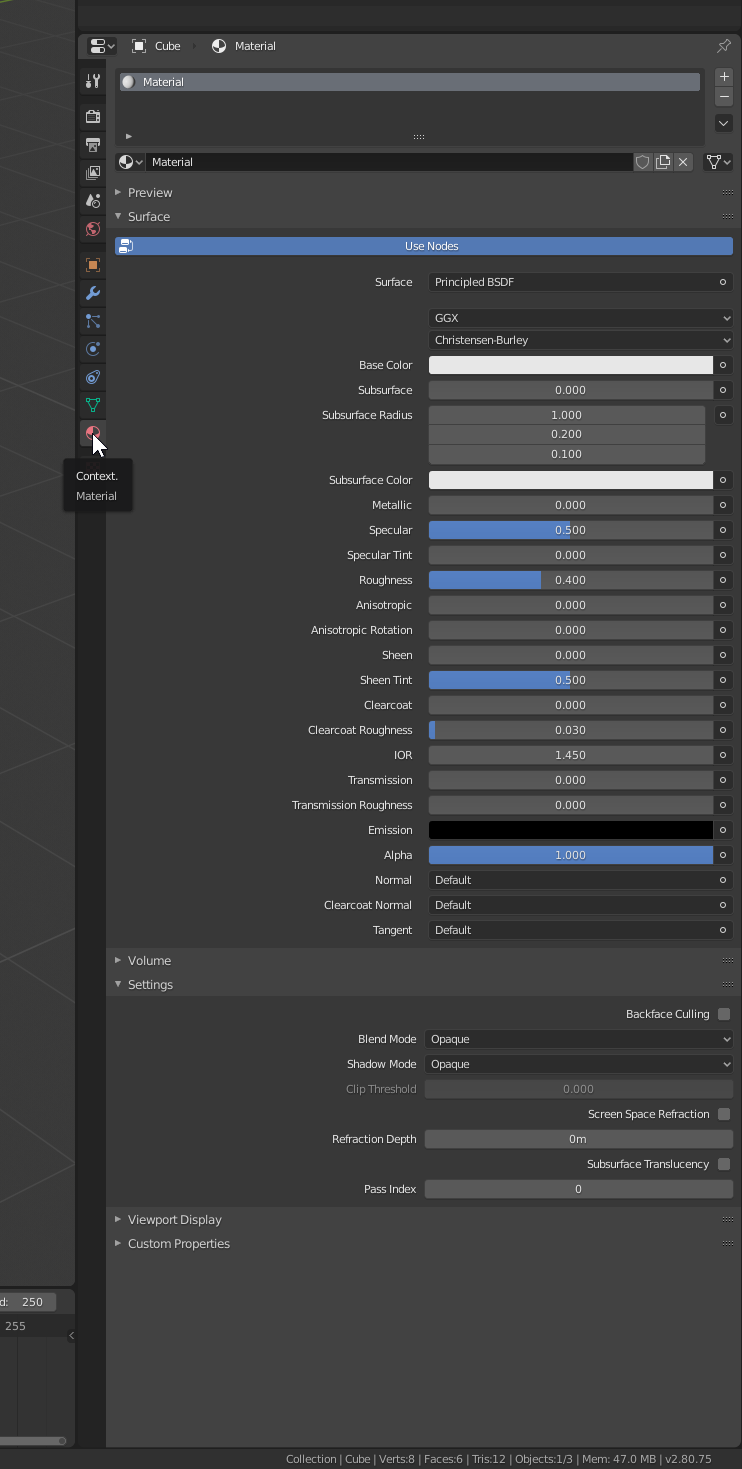
Import and texture the OBJ
- Click
File > Import > Wavefront (.obj) - Browse to and select the file, then click
Import OBJ - On the
Materialtab on thePropertiespanel, click the ball icon next to+ Newand selectF Material - Click the triangle pointing right icon next to
Base Color [Mix] - Click the triangle pointing right icon next to
Fac [Image Texture] - Click
Open - Browse to and select the livery image file, then click
Open Image
Auto-reload plugin
Instead of repeatedly opening the livery texture file every time you make a change, you can install a plugin that will automatically reload it every time the file changes.
- If you use GIMP or Photoshop, you can use the add-on External Paint Autorefresh
- If you use another program, you can use Auto-Reload Images
- Download your prefered auto-reload plugin
- In Blender, on the top menu bar, select
File > User Preferences… - Click
Add-onsthenInstall Add-on from File…at the top - Browse to and select the ZIP file you downloaded above, then click
Install Add-on from File… - Click
userunderCategorieson the left - Click the check-box next to the add-on you just installed
- Click
Save user settings - You may have to enable the auto-refresh functionality when launching blender or opening a file
- For
Auto-Reload Images, click the clock icon on the right of the top menu bar