
You can follow a video (Blender 2.80 and later) of this guide. It may be helpful to refer to both the video and this text.
Preparation
You can open this start file for Blender 2.80 and later (may work with 2.79 and earlier, but has not been tested) and skip this section Follow these steps to prepare for previewing liveries
- If you are using blender 2.79 or earlier, switch from
Blender RendertoCycles Renderin the dropdown to the right of the topmost menu bar. - On the menu bar in the top-right of the 3D view (below the 3D view in Blender 2.79 or earlier, or a file created in Blender 2.79 or earlier), click the ball icon next to
Object Modeand selectMaterial
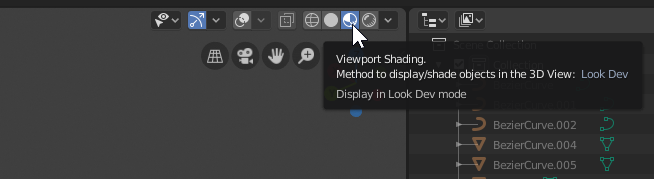
- Right-click the default cube to select it
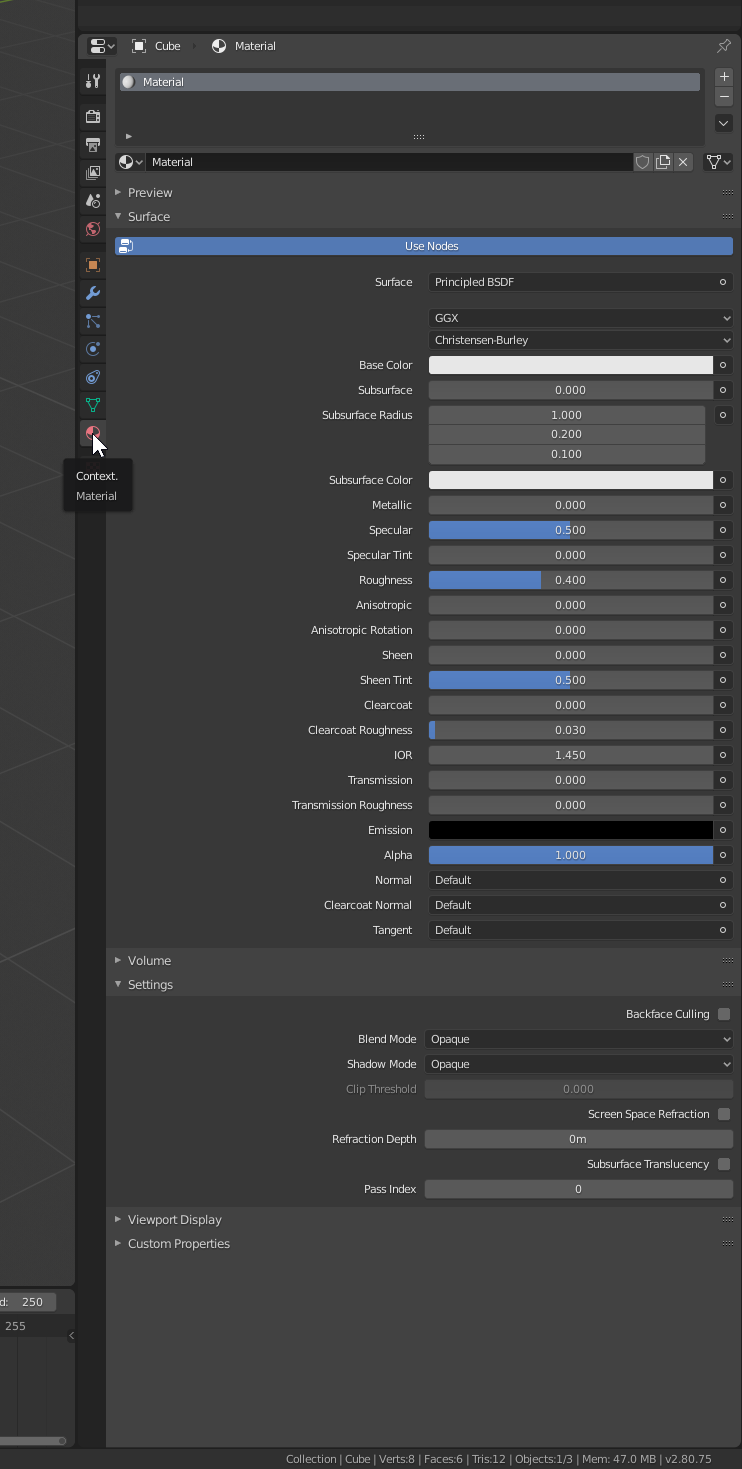
- Select the Material tab in the Properties pane
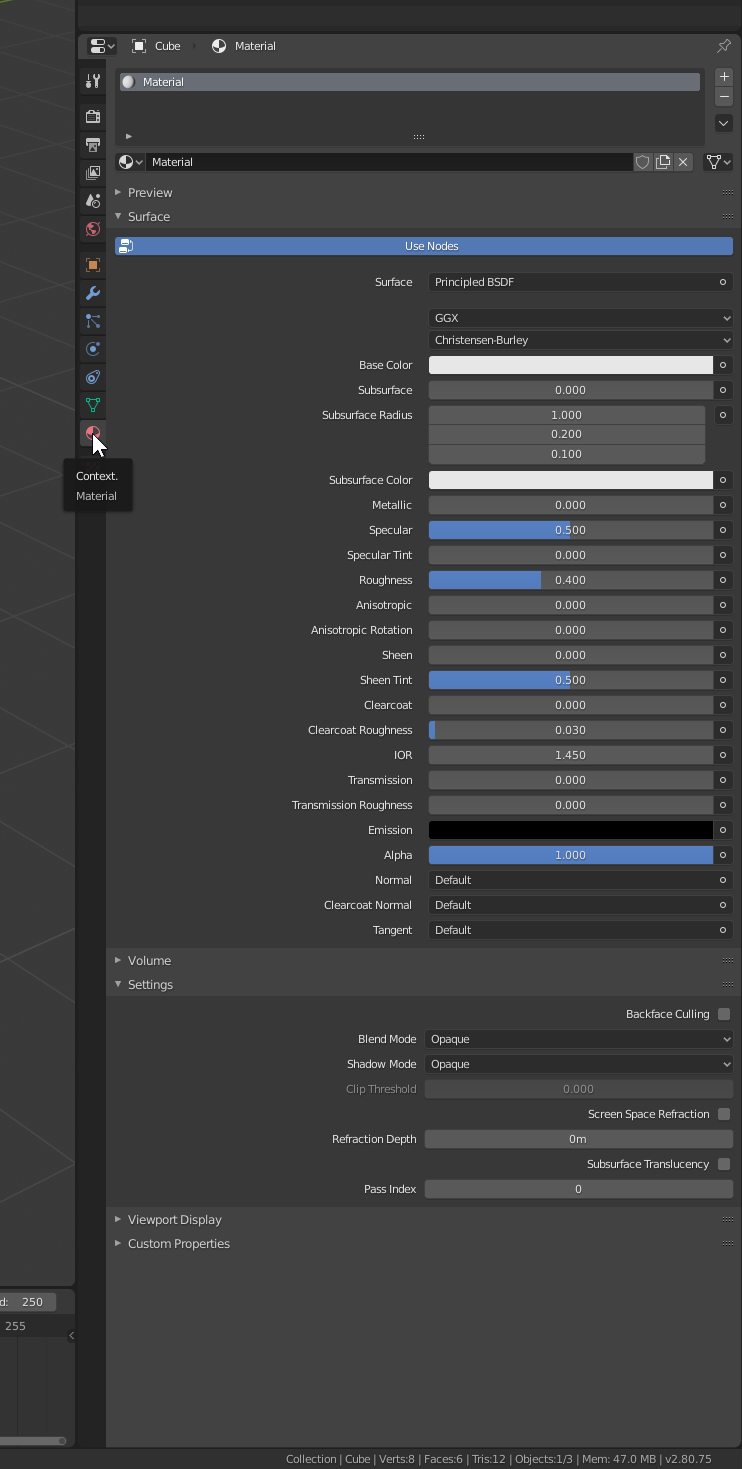
- Click
+ New - Blender 2.80: Click the icon in the upper-left of the 3D view, and select
Material Editor - Blender 2.79: Click the icon in the lower-right of the 3D view, and select
Node Editor - You should now see a
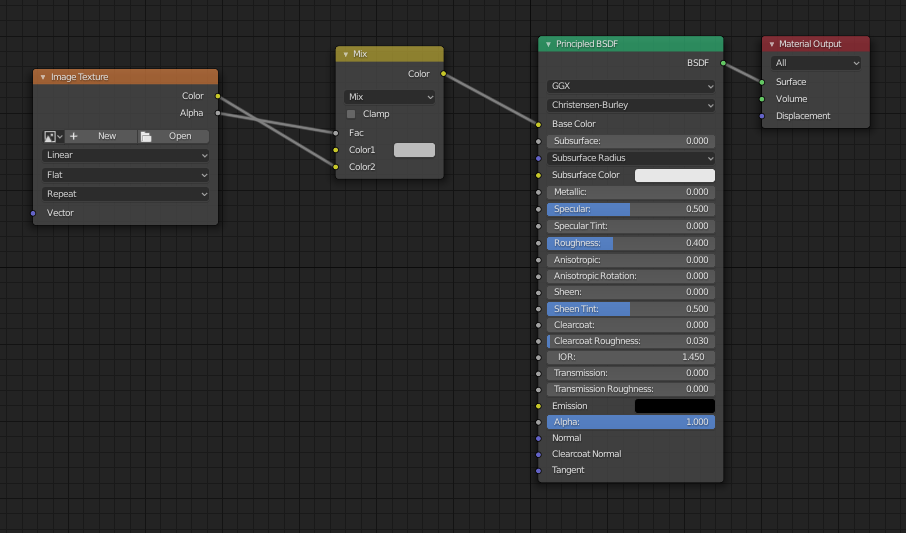
Principled BSDForDiffuse BSDFwith itsBSDFoutput connected to aMaterial Outputby itsSurfaceinput. If so, skip the next three steps.- If not, press delete to clear the Node Editor (press
Athen delete if this does not clear the Node Editor) - Click
Add > Output > Material Outputand click anywhere in the Node Editor to place the node - Click
Add > Shader > Diffuse BSDFand click anywhere in the Node Editor to the left of the Material Output node to place the node - Click and drag from the
BSDFoutput of theDiffuse BSDFnode to theSurfaceinput of theMaterial OutputNode
- Click
Add > Color > MixRGBand click in an empty space to the left of the BSDF node to place it - Click
Add > Texture > Image Textureand click in an empty space to the left of theMixnode to place it - Click and drag from the
Coloroutput of theImage Textureto theColor 2input of theMix - Click and drag from the
Alphaoutput of theImage Textureto theFacinput of theMixnode - Click the Shield icon (or F) next to the material name near the top of the material tab in the properties pane.
- On the left of the menu above (below in 2.79 and earlier) the
Node Editor, click the icon and select3D View - Press
Ato select all (press until orange outlines are seen) - Press
Deleteand click on the confirmation popup - You may want to
File » Save, orFile > Save Startup Fileas this is a good starting point for previewing liveries
Import and texture the OBJ
- Click
File > Import > Wavefront (.obj) - Browse to and select the file, then click
Import OBJ - On the
Materialtab on thePropertiespanel, click the ball icon next to+ Newand select the material created earlier. If you are using the start file linked above,view uv.000orview compositeis good for most livery making. - Click the triangle pointing right icon next to
Base Color [Mix] - Click the triangle pointing right icon next to
Fac [Image Texture] - Click
Open - Browse to and select the livery image file, then click
Open Image
Auto-reload plugin
Instead of repeatedly opening the livery texture file every time you make a change, you can install a plugin that will automatically reload it every time the file changes.
- If you use GIMP or Photoshop, you can use the add-on External Paint Autorefresh
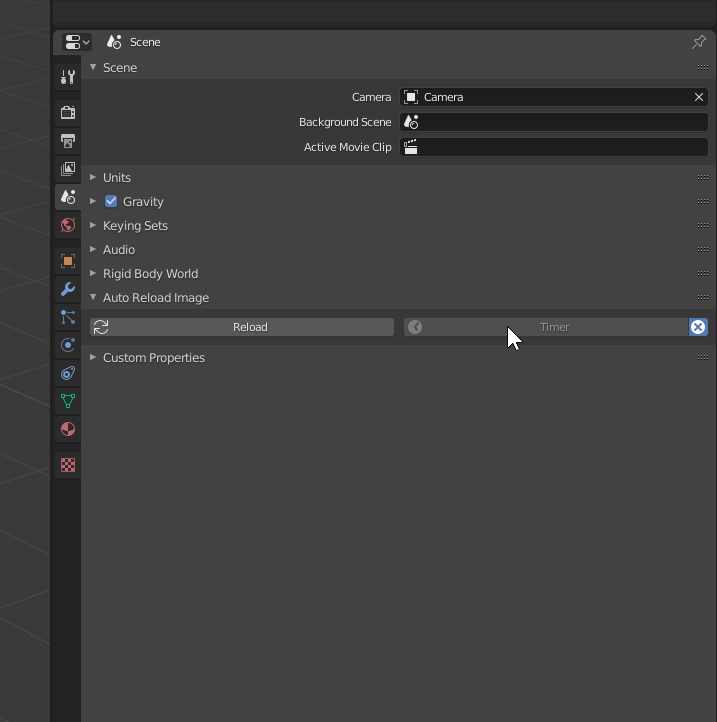
- If you use another program, you can use Auto-Reload Images
- Download your prefered auto-reload plugin
- In Blender, on the top menu bar, select
File > User Preferences… - Click
Add-onsthenInstall Add-on from File…at the top - Browse to and select the ZIP file you downloaded above, then click
Install Add-on from File… - Click
userunderCategorieson the left - Click the check-box next to the add-on you just installed
- Click
Save user settings - You may have to enable the auto-refresh functionality when launching blender or opening a file
- For
Auto-Reload Images- Blender 2.79: click the clock icon on the right of the top menu bar
- Blender 2.80: click the
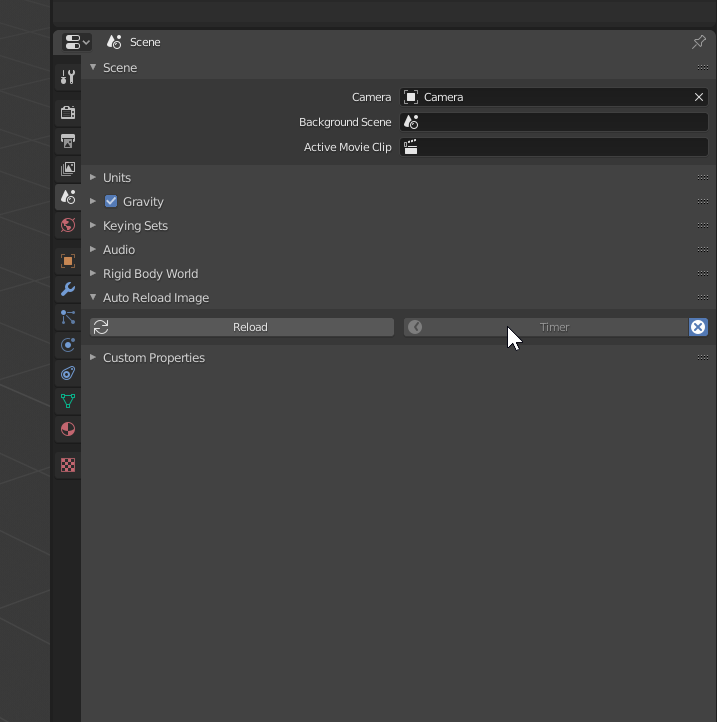
Timerbutton (with a clock icon) in theContexttab of thePropertiespanel